
With the introduction of Toposolids in Revit 2024, modeling terrain and subgrade conditions has become more precise—but also introduces new behaviors when working with other categories like structural walls.
Recently, while integrating a structural foundation wall into a Toposolid, I encountered a common issue: after using the Join Geometry tool, instead of the wall cutting through the soil as expected, the Toposolid took precedence, overriding the wall’s geometry. This caused the wall to appear partially buried or even completely hidden—disrupting the design intent for basement walls, retaining structures, or under-slab assemblies.
What’s Happening?
Revit assigns join priorities based on categories and material layers. In many cases, Toposolids are interpreted as dominant elements during a join, causing them to cut through rather than be cut by other elements. Without adjusting the join order, the Toposolid will consume the wall geometry.
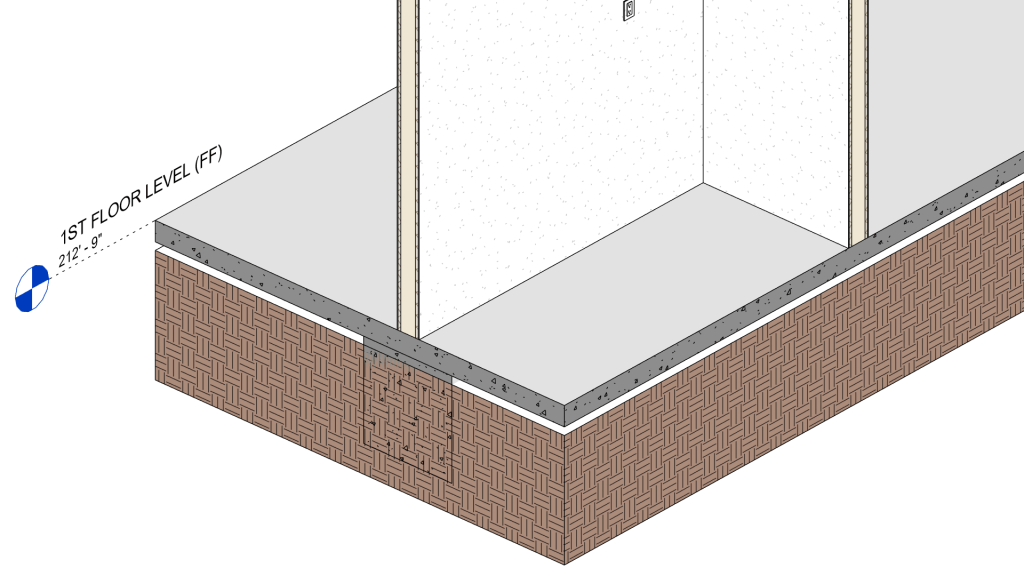
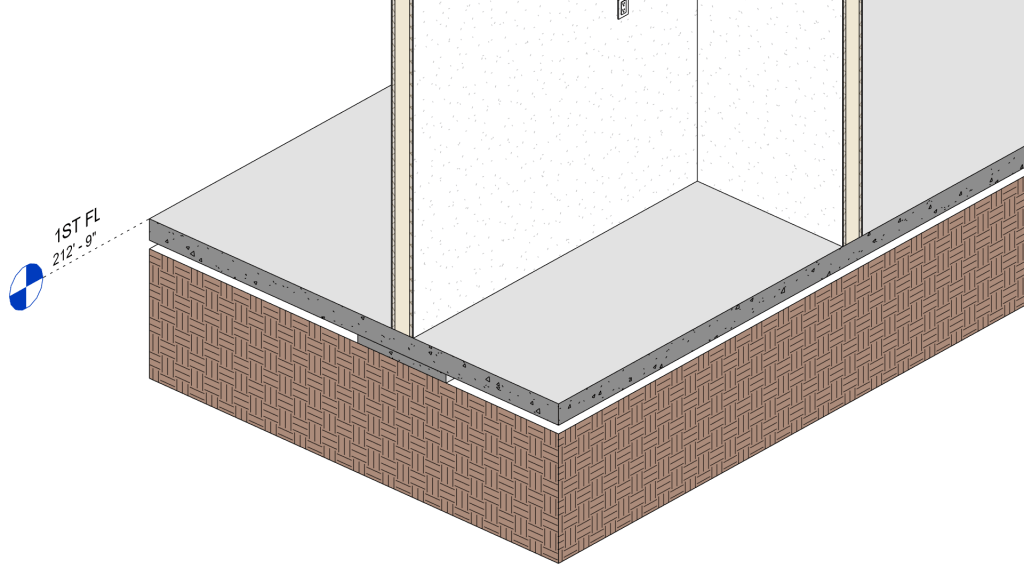
How to Fix It: Switch the Join Order
To correct this behavior and make the structural wall cut the Toposolid, follow these steps:
- Select either the Toposolid or the Wall.
- Go to the Modify tab.
- Click Switch Join Order.
- Click first on the Toposolid, then on the Wall.
Revit will now reverse the cutting relationship, allowing the wall to define the cut and the Toposolid to adapt—accurately representing walls embedded in grade or excavation zones.
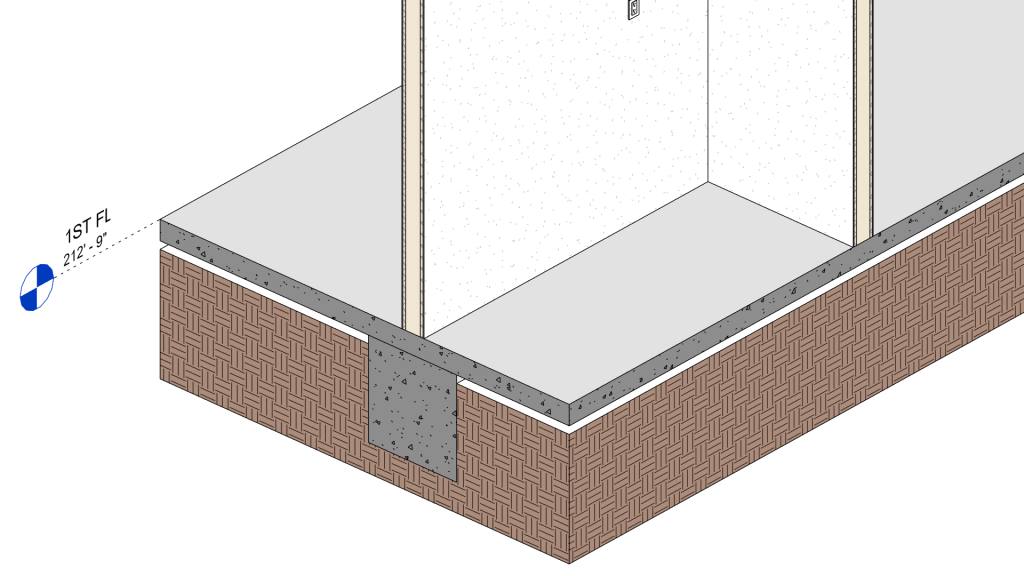
That’s it! I hope you found this guide helpful. If you have any questions or enjoyed the content, feel free to reach out—I’d love to hear from you!
📩 Email: office@mariapiacruz.com


 Maria Pia Cruz
Leave a comment